mirror of
https://github.com/kristoferssolo/solorice.git
synced 2025-10-21 20:10:34 +00:00

164 lines
5.1 KiB
Markdown
164 lines
5.1 KiB
Markdown
# One Dark Pro
|
|
|
|
## About
|
|
[One Dark Pro](https://marketplace.visualstudio.com/items?itemName=zhuangtongfa.Material-theme) is based on Atom's default One Dark theme, and is one of the most downloaded themes for VS Code. This document will show you how to install the theme on VS Code, and how to develop and contribute to this project.
|
|
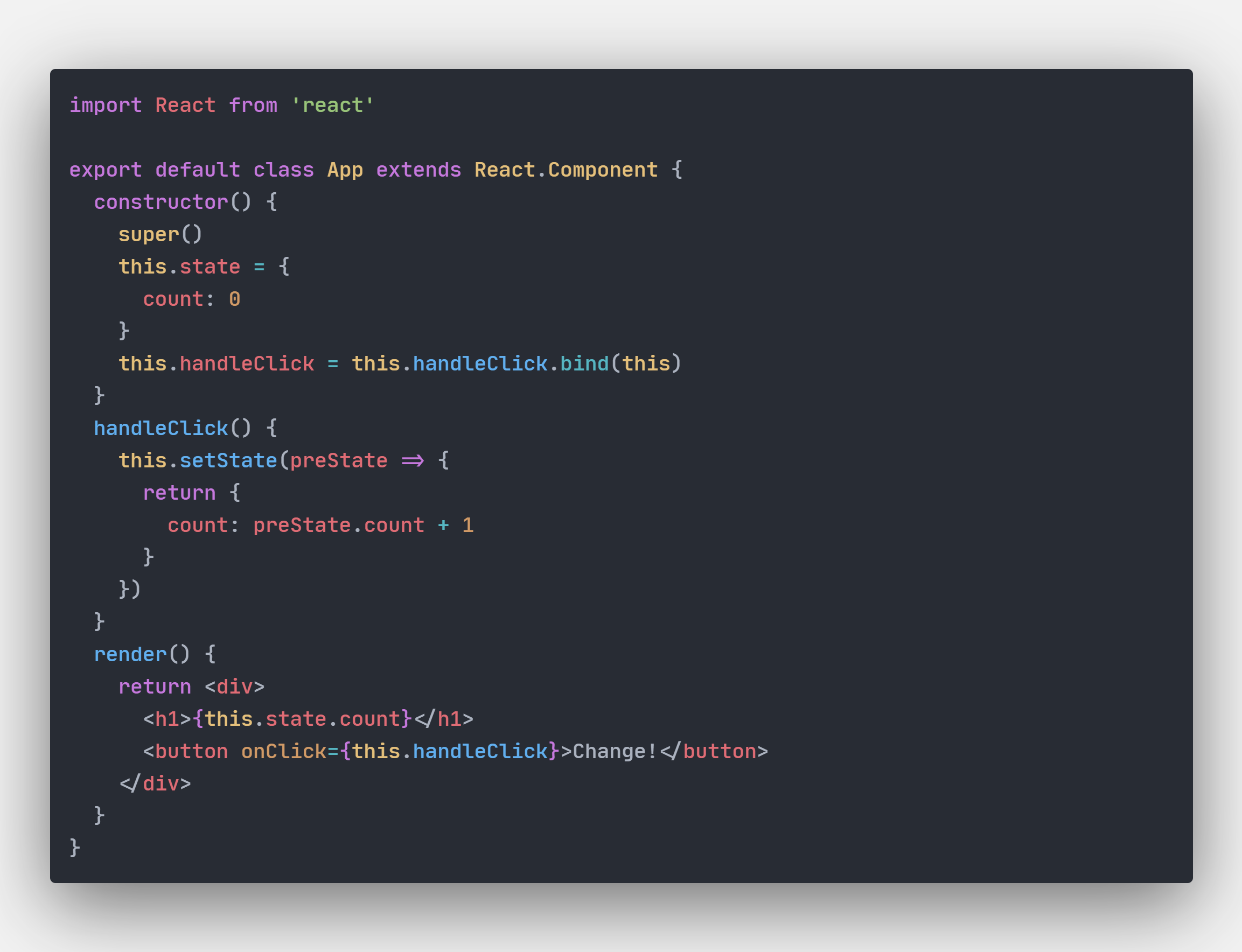
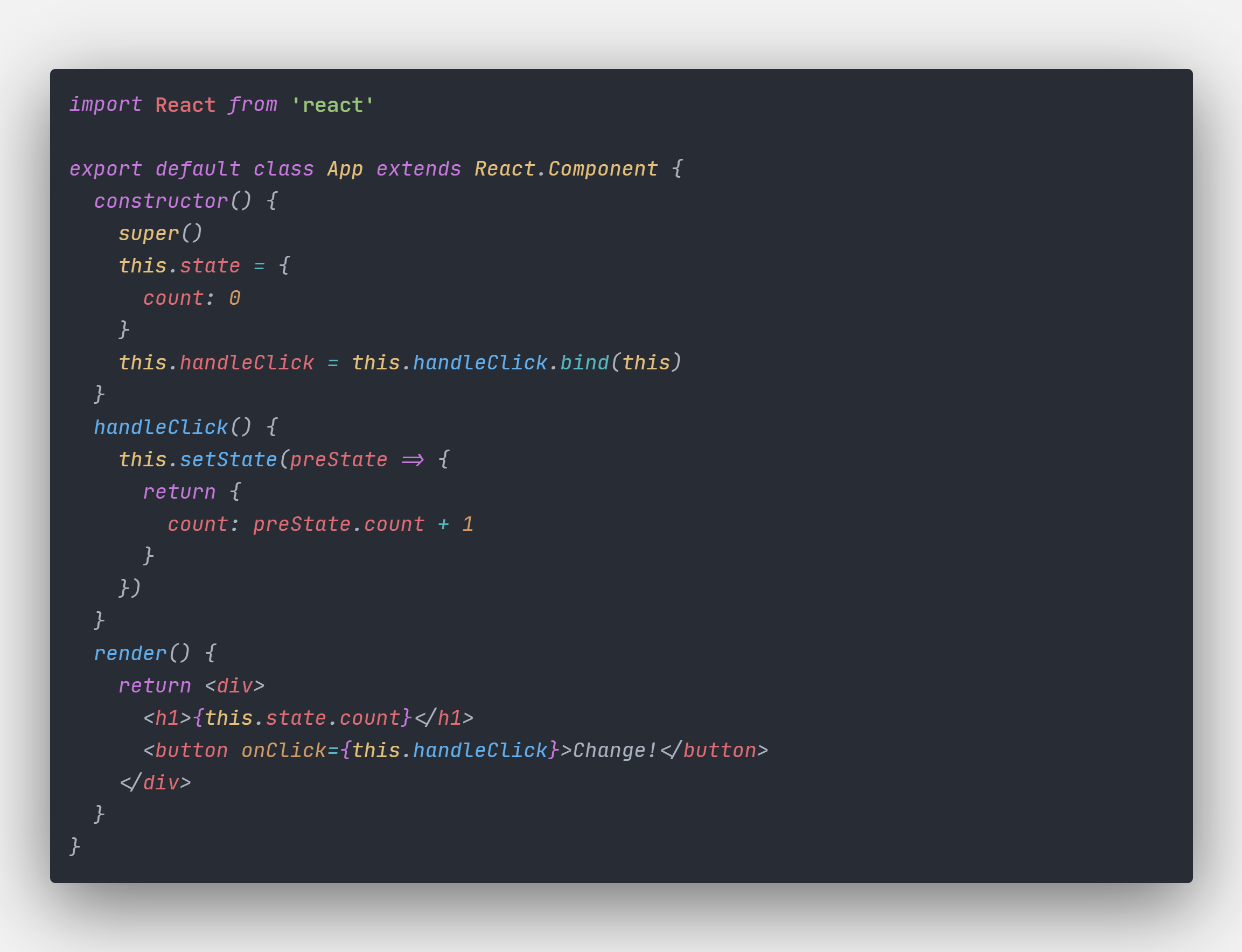
# screenshot
|
|
|
|
|
|
|
|
## Install
|
|
Using the Extensions menu, search for **'One Dark Pro'**. Don't forget to apply the theme (see below).
|
|
|
|
## Apply
|
|
Press `ctrl(⌘) + k`, then press `ctrl(⌘) + t`, you will see a theme selection interface. Choose **'One Dark Pro'**.
|
|
|
|
## Develop
|
|
If you see any inconsistencies or missing colors, the following guide will show you how to make your own changes. You can submit your improvements as a merge request to this theme.
|
|
|
|
Clone this repo
|
|
```
|
|
$ git clone git@github.com:Binaryify/OneDark-Pro.git
|
|
```
|
|
Then run
|
|
|
|
```
|
|
$ yarn
|
|
```
|
|
|
|
Then use vscode open and press `F5` key
|
|
|
|
Change the `src/themes/themeData.ts` or `src/themes/data/*` file then reload vscode and you will see the change
|
|
|
|
You also can use `npm run package` to package extension file, the *.vsic file will be generate, then use vscode install the vsic file
|
|
|
|
### Principle
|
|
VS Code will parse code and specify a scope for each piece of syntax. For example, the scope may be a keyword, a constant, or punctuation. **'themeData.ts'** includes the settings that tell VS Code how to format the text accordingly, using these scopes.
|
|
|
|
### Common scope list
|
|
|
|
```
|
|
comment
|
|
constant
|
|
constant.character.escape
|
|
constant.language
|
|
constant.numeric
|
|
declaration.section entity.name.section
|
|
declaration.tag
|
|
deco.folding
|
|
entity.name.function
|
|
entity.name.tag
|
|
entity.name.type
|
|
entity.other.attribute-name
|
|
entity.other.inherited-class
|
|
invalid
|
|
invalid.deprecated.trailing-whitespace
|
|
keyword
|
|
keyword.control.import
|
|
keyword.operator.js
|
|
markup.heading
|
|
markup.list
|
|
markup.quote
|
|
meta.embedded
|
|
meta.preprocessor
|
|
meta.section entity.name.section
|
|
meta.tag
|
|
storage
|
|
storage.type.method
|
|
string
|
|
string source
|
|
string.unquoted
|
|
support.class
|
|
support.constant
|
|
support.function
|
|
support.type
|
|
support.variable
|
|
text source
|
|
variable
|
|
variable.language
|
|
variable.other
|
|
variable.parameter
|
|
```
|
|
|
|
### Get code scope
|
|
VS Code comes with a built-in tool to easily obtain the scope of a piece of syntax.
|
|
|
|
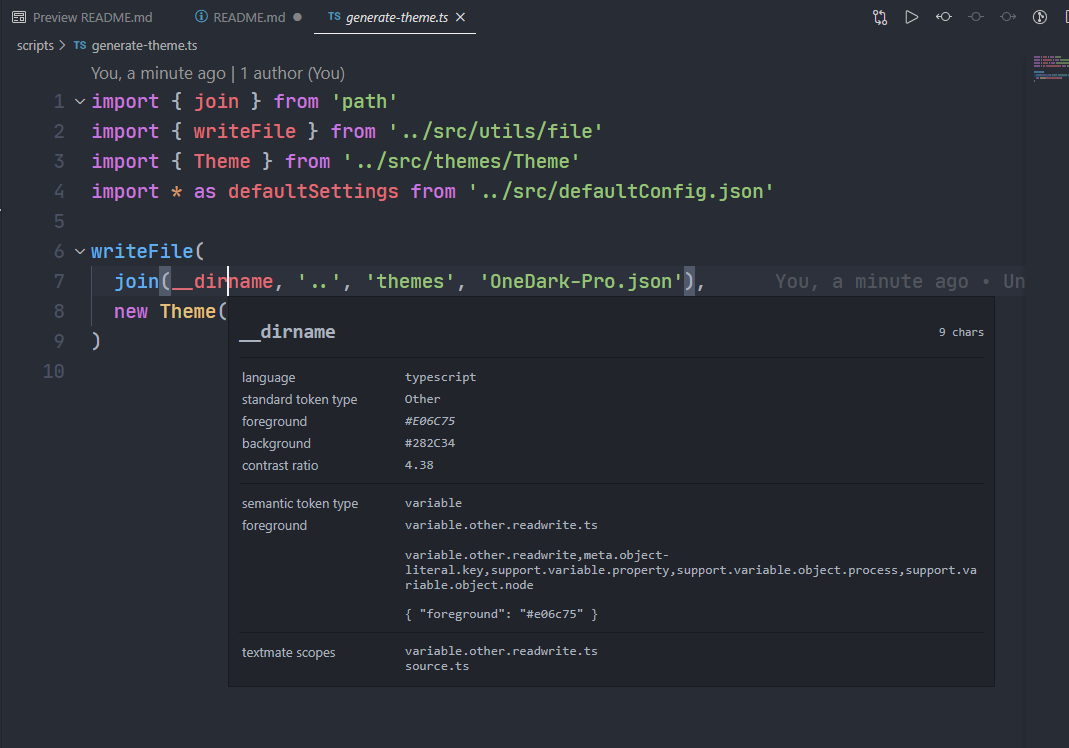
Press `ctrl(⌘) + shift + P`, then type `dev`, and choose **"Developer: Inspect TM Scopes"** option.
|
|
|
|
This will show you the selected token's scope. There are four sections:
|
|
|
|
- the in-scope piece of syntax
|
|
|
|
- language, token type, etc.
|
|
|
|
- the theme rule and shows the foreground color of the token
|
|
|
|
- the list of scopes for the token
|
|
|
|
|
|
|
|
### Add/Change code color
|
|
Now you know the rules for the theme, you simply need the code scope and the hex color you would like. Now edit the **'themeData.ts'** file, add/change code snippet like this:
|
|
|
|
```js
|
|
{
|
|
"name": "c++ function",
|
|
"scope": "meta.function.c",
|
|
"settings": {
|
|
"foreground": colorObj['coral']
|
|
}
|
|
}
|
|
```
|
|
|
|
|
|
### Reload
|
|
Then press `ctrl(⌘) + shift + P`, type **'reload'** and press `enter`. Once the window has reloaded, you will find the color of the code has changed.
|
|
|
|
## Tweaks & theming
|
|
If you want to play around with new colors, use the setting `workbench.colorCustomizations` to customize the currently selected theme.
|
|
For example, you can add this snippet in your "settings.json" file:
|
|
|
|
```json
|
|
"workbench.colorCustomizations":{
|
|
"tab.activeBackground": "#282c34",
|
|
"activityBar.background": "#282c34",
|
|
"sideBar.background": "#282c34"
|
|
}
|
|
```
|
|
|
|
or use the setting `editor.tokenColorCustomizations`
|
|
|
|
```json
|
|
"editor.tokenColorCustomizations":{
|
|
"[One Dark Pro]": {
|
|
"textMateRules": [
|
|
{
|
|
"scope":["source.python"],
|
|
"settings": {
|
|
"foreground": "#e06c75"
|
|
}
|
|
}
|
|
]
|
|
}
|
|
}
|
|
```
|
|
|
|
Please check the official documentation,
|
|
[Theme Color Reference](https://code.visualstudio.com/docs/getstarted/theme-color-reference) and
|
|
[Theme Color](https://code.visualstudio.com/docs/getstarted/themes) , for more helpful information.
|
|
|
|
|
|
[More info](https://code.visualstudio.com/updates/v1_15#_user-definable-syntax-highlighting-colors)
|
|
|
|
|
|
## Highlight color custom
|
|
The colors default
|
|

|
|
|
|
You can custom the color in VS Code's settings
|
|

|
|
|
|
## Contribute
|
|
Now you know how to develop the theme, you can fork this repository and send a pull request with your version. The request will be reviewed, and if successful, merged into this theme and published on the VS Code market.
|
|
|
|
To publish your own theme, please refer to the official documentation: [https://code.visualstudio.com/docs/extensions/themes-snippets-colorizers](https://code.visualstudio.com/docs/extensions/themes-snippets-colorizers)
|