# Path Intellisense
Visual Studio Code plugin that autocompletes filenames.
## Sponsors
 Eliminate context switching and costly distractions. Create and merge PRs and perform code reviews from inside your IDE while using jump-to-definition, your favorite keybindings, and other IDE tools.
Learn more
 Track and prioritise tech debt and maintenance issues, straight from your IDE. Bookmark code while you work, organise TODOs and share codebase knowledge with your team. Try it out for free today.
 Easy pair programming with any IDE. Duckly enables you to talk, share your code in real-time, server and terminal with people using different IDEs. Try it out for free.
## Installation
In the command palette (cmd-shift-p) select Install Extension and choose Path Intellisense.
To use Path Intellisense instead of the default autocompletion, the following configuration option must be added to your settings:
```javascript
{ "typescript.suggest.paths": false }
{ "javascript.suggest.paths": false }
```
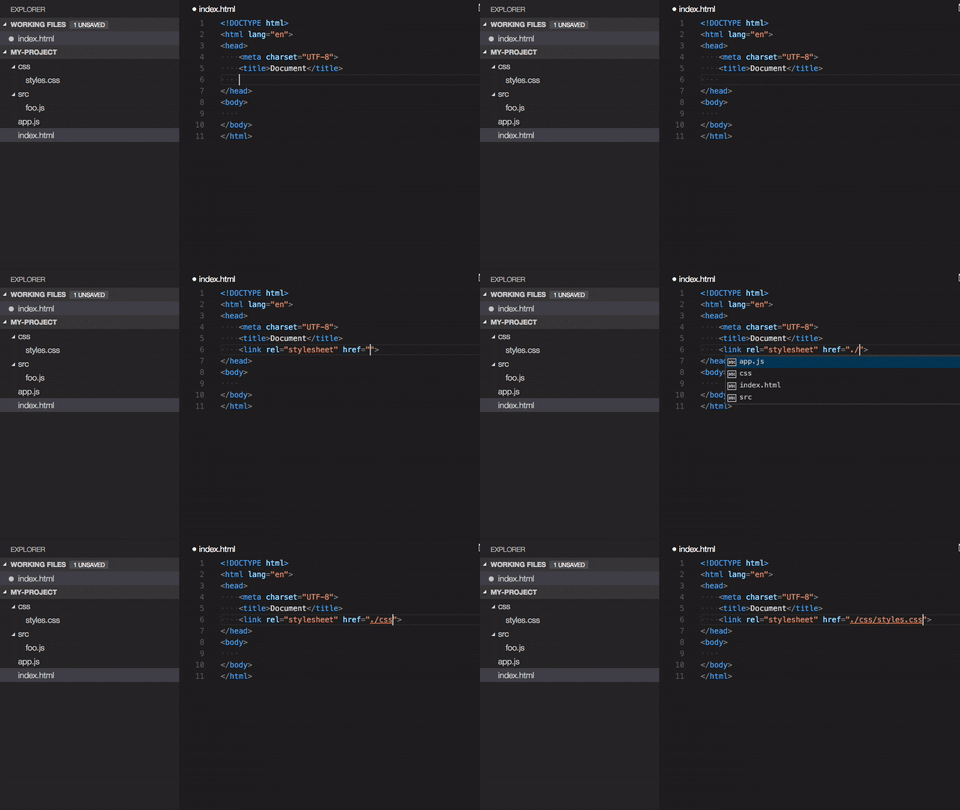
## Usage
## Node packages intellisense
Use [npm intellisense](https://marketplace.visualstudio.com/items?itemName=christian-kohler.npm-intellisense)
## Contributing
Something missing? Found a bug? - Create a pull request or an issue.
[Github](https://github.com/ChristianKohler/PathIntellisense)
[Open in Gitpod](https://gitpod.io/#https://github.com/ChristianKohler/PathIntellisense)
## Are you a windows user?
There is an issue on windows with the period key. See Issue https://github.com/ChristianKohler/NpmIntellisense/issues/12
Add this to the keybinding:
```javascript
{ "key": ".", "command": "" }
```
## TsConfig support
### BaseUrl
Pathintellisense uses the ts.config.compilerOptions.baseUrl as a mapping. So no need to define it twice. There is no support for paths at the moment.
For example:
```markdown
# Folderstructure
src/
module-a
foo.ts
module-b
```
```javascript
// tsconfig
{
"baseUrl": "src",
}
```
would allow to type:
```javascript
{
import {} from "module-a/foo.ts";
}
```
You can disable this behaviour by setting it to true:
```javascript
{
"path-intellisense.ignoreTsConfigBaseUrl": true,
}
```
## Settings
### File extension in import statements
Path Intellisense removes the file extension by default if the statement is a import statement. To enable file extensions set the following setting to true:
```javascript
{
"path-intellisense.extensionOnImport": true,
}
```
### Show hidden files
Per default, hidden files are not displayed. Set this to true to show hidden files.
```javascript
{
"path-intellisense.showHiddenFiles": true,
}
```
If set to false, PathIntellisense ignores the default "files.exclude" as well:
```javascript
{
"files.exclude": {
"**/*.map.js": true
}
}
```
### Auto slash when navigating to folder
Per default, the autocompletion does not add a slash after a directory.
```javascript
{
"path-intellisense.autoSlashAfterDirectory": false,
}
```
### Automatically trigger next suggestion
When a suggestion was selected, the next suggestion will automatically pop up.
This setting will override the `autoSlashAfterDirectory` setting.
```javascript
{
"path-intellisense.autoTriggerNextSuggestion": false,
}
```
### Absolute paths
Per default, absolute paths are resolved within the current workspace root path.
Set it to false to resolve absolute paths to the disk root path.
```javascript
{
"path-intellisense.absolutePathToWorkspace": true,
}
```
### Mappings
Define custom mappings which can be useful for using absolute paths or in combination with webpack resolve options.
```javascript
{
"path-intellisense.mappings": {
"/": "${workspaceFolder}",
"lib": "${workspaceFolder}/lib",
"global": "/Users/dummy/globalLibs"
},
}
```
Use \${workspaceFolder} when the path should be relative to the current root of the current project. V2.2.1 and lower used \${workspaceRoot}. Newer version support both placeholders.
## History
See changelog
## License
This software is released under [MIT License](https://www.opensource.org/licenses/mit-license.php)