# Workflows
This template uses [GitHub workflows](https://docs.github.com/en/actions/using-workflows) for [CI / CD](https://www.redhat.com/en/topics/devops/what-is-ci-cd), defined in [`.github/workflows/`](../.github/workflows).
## CI (testing)
The [CI workflow](.github/workflows/ci.yaml) will trigger on every commit or PR to `main`, and do the following:
- Run tests.
- Run Clippy lints.
- Check formatting.
- Check documentation.
> [!Tip]
>
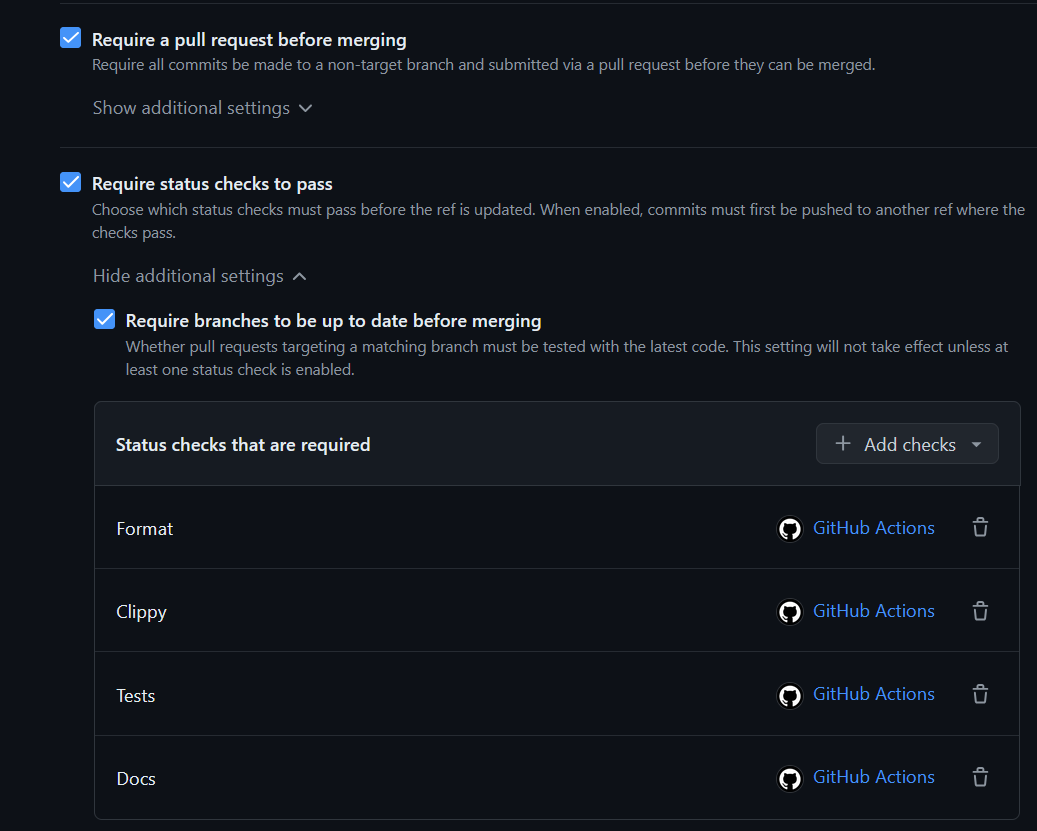
> You may want to set up a GitHub ruleset to require that all commits to main pass CI.
>
>  >
>
## CD (releasing)
The [CD workflow](../.github/workflows/release.yaml) will trigger on every pushed tag in the format `v1.2.3`, and do the following:
- Create a release build for Windows, macOS, Linux, and web.
- (Optional) Upload to [GitHub releases](https://docs.github.com/en/repositories/releasing-projects-on-github).
- (Optional) Upload to [itch.io](https://itch.io).
This workflow can also be triggered manually.
In your GitHub repository, navigate to `Actions > Release > Run workflow`:
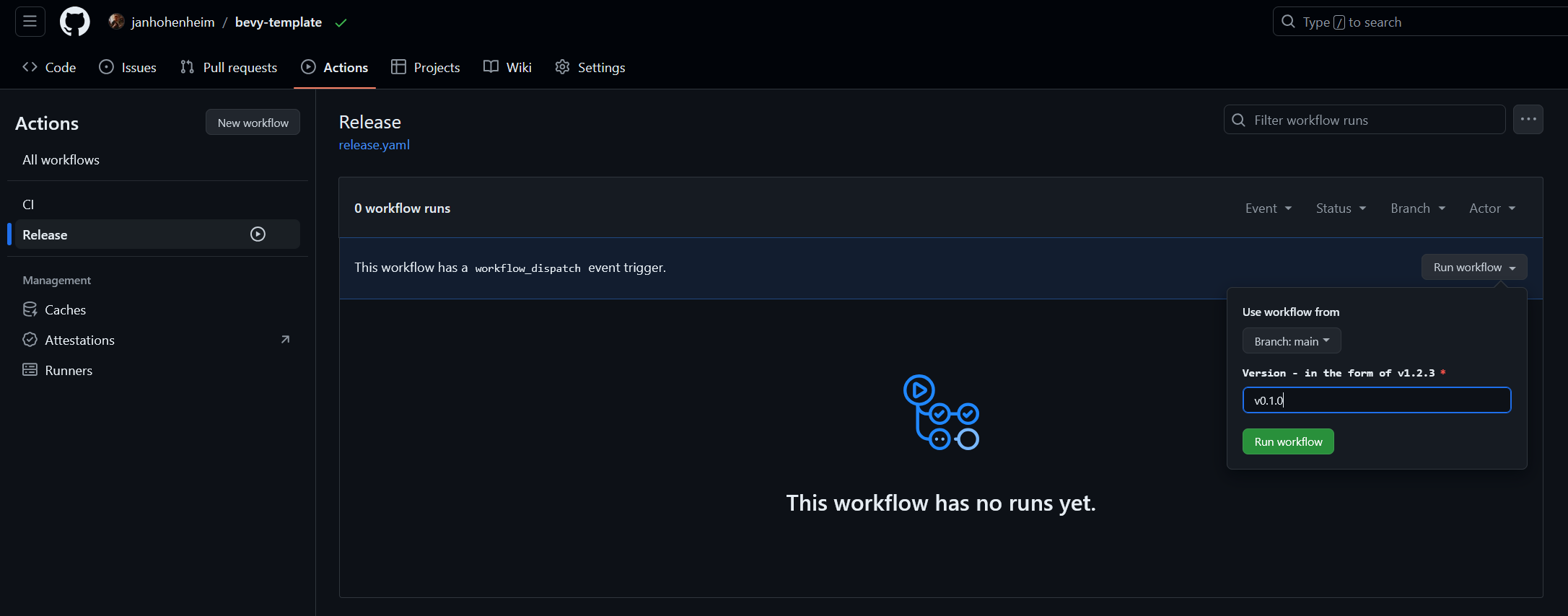
Enter a version number in the format `v1.2.3`, then hit the green `Run workflow` button.
> [!Important]
> Using this workflow requires some setup. We will go through this now.
### Configure environment variables
The release workflow can be configured by tweaking the environment variables in [`.github/workflows/release.yaml`](../.github/workflows/release.yaml).
Click here for a list of variables and how they're used.
```yaml
# The base filename of the binary produced by `cargo build`.
cargo_build_binary_name: bevy_quickstart
# The path to the assets directory.
assets_path: assets
# Whether to upload the packages produced by this workflow to a GitHub release.
upload_to_github: true
# The itch.io project to upload to in the format `user-name/project-name`.
# There will be no upload to itch.io if this is commented out.
upload_to_itch: the-bevy-flock/bevy-quickstart
############
# ADVANCED #
############
# The ID of the app produced by this workflow.
# Applies to macOS releases.
# Must contain only A-Z, a-z, 0-9, hyphens, and periods: https://developer.apple.com/documentation/bundleresources/information_property_list/cfbundleidentifier
app_id: the-bevy-flock.bevy-quickstart
# The base filename of the binary in the package produced by this workflow.
# Applies to Windows, macOS, and Linux releases.
# Defaults to `cargo_build_binary_name` if commented out.
app_binary_name: bevy_quickstart
# The name of the `.zip` or `.dmg` file produced by this workflow.
# Defaults to `app_binary_name` if commented out.
app_package_name: bevy_quickstart
# The display name of the app produced by this workflow.
# Applies to macOS releases.
# Defaults to `app_package_name` if commented out.
app_display_name: Bevy Quickstart
# The short display name of the app produced by this workflow.
# Applies to macOS releases.
# Must be 15 or fewer characters: https://developer.apple.com/documentation/bundleresources/information_property_list/cfbundlename
# Defaults to `app_display_name` if commented out.
app_short_name: Bevy Quickstart
# Before enabling LFS, please take a look at GitHub's documentation for costs and quota limits:
# https://docs.github.com/en/repositories/working-with-files/managing-large-files/about-storage-and-bandwidth-usage
git_lfs: false
```
The values are set automatically by `cargo generate`, or you can edit them yourself and push a commit.
### Set up itch.io upload
#### Add butler credentials
In your GitHub repository, navigate to Settings > Secrets and variables > Actions.
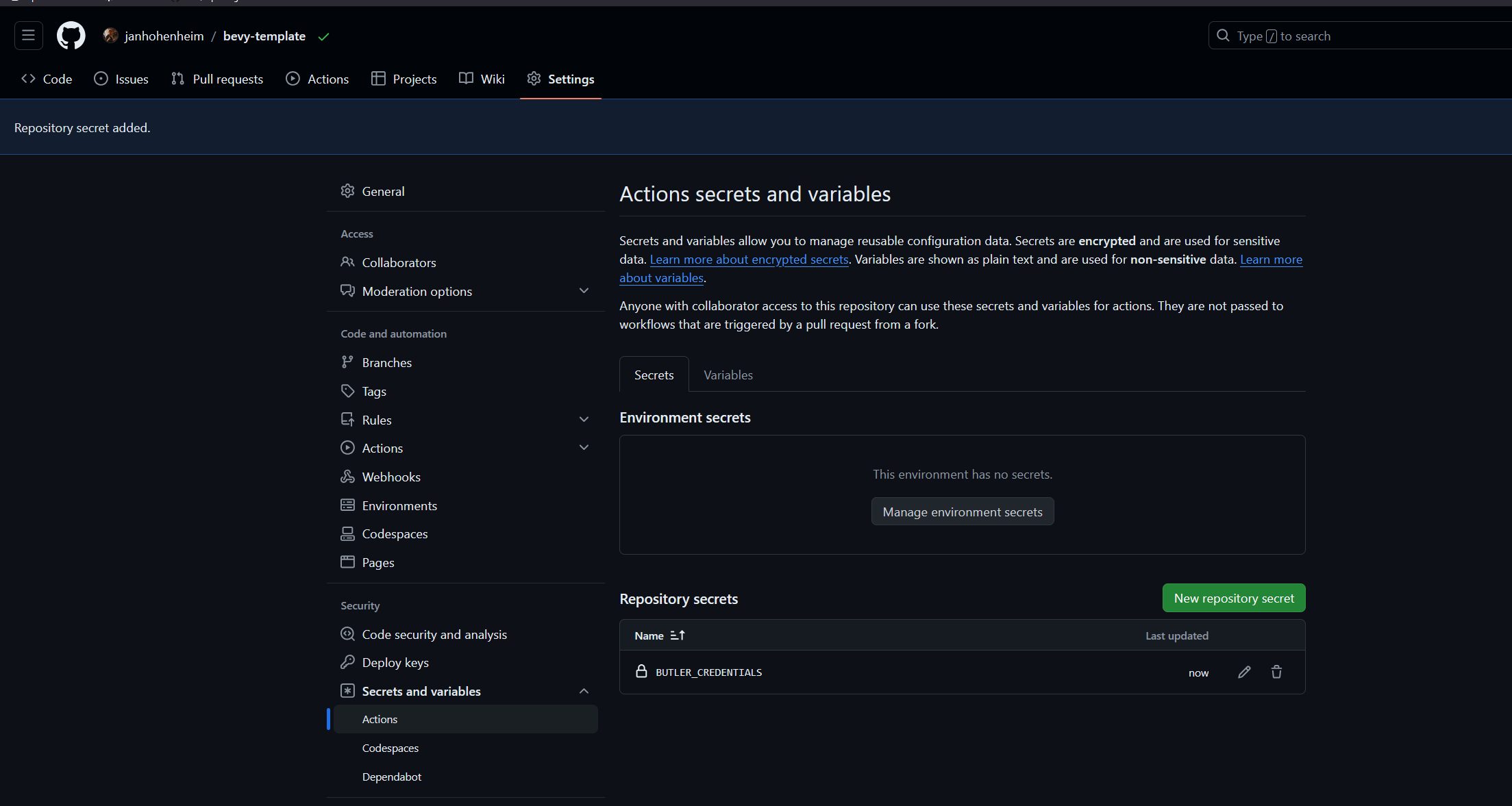
Hit `New repository secret` and enter the following values, then hit `Add secret`:
- **Name:** `BUTLER_CREDENTIALS`
- **Secret:** Your [itch.io API key](https://itch.io/user/settings/api-keys) (create a new one if necessary)
#### Create itch.io project
Create a new itch.io project with the same user and project name as in the `upload_to_itch` variable in [`.github/workflows/release.yaml`](../.github/workflows/release.yaml).
Hit `Save & view page` at the bottom of the page.
[Trigger the release workflow](#cd-releasing) for the first time. Once it's done, go back to itch.io and hit `Edit game` in the top left.
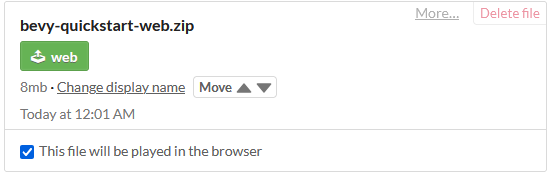
Set `Kind of project` to `HTML`, then find the newly uploaded `web` build and tick the box that says "This file will be played in the browser".